
In a previous post, I went over some technical details on passkeys and Yubikeys. In this post I’ll provide concrete advice on how to roll out phishing-proof authentication without driving your staff crazy. I’ll also show you the one tiny icon that threatens to confuse everyone at your organization and botch your rollout if you don’t document it well.
I’ll use Google as the example here, but similar lessons apply to Microsoft, Okta, or any other IdP.

Decide on which technology to roll out, and to whom
First, decide who will be affected by this policy. I believe it’s reasonable to ask all staff to use Yubikeys or passkeys, but you may prefer that some team members are exempt.
Then, decide on which technology to use. As I noted previously, passkeys stored in 1Password are just as secure as Yubikeys for all but the most intense threat models. However, even if you’re using passkeys in 1Password, you want that 1Password account protected by Yubikeys anyway, so my current recommendation is to use Yubikeys for everything. I’ve also found Yubikeys to be a bit more user-friendly (they interface with more apps more cleanly), but they add cost and logistics to get them to staff.
I wouldn’t use device-bound passkeys, as the user experience for 1Password is much cleaner.
Communication and rolling out
You’ll want to send out one org-wide email on your new Yubikey program and what it will look like.
What to communicate up front:
Why you’re doing this. “Phishing is how most organizations get breached. This makes phishing impossible.” Keep it simple, and cite successes from other orgs like Google:
“Google has not had any of its 85,000+ employees successfully phished on their work-related accounts since early 2017, when it began requiring all employees to use physical Security Keys in place of passwords and one-time codes.” (Source, as of 2018)
What they need to do. Give clear instructions on how to set up the keys on their 1Password and Google accounts. Consider adding a Loom or similar video.
When enforcement starts. This will probably vary by team, as described below.
Logistics:
Issue two keys per person.
You’ll want to use this model, the Yubikey 5C NFC.It will work with all of your staff’s devices. EDIT: Kim Korte pointed out that the standard Security Key series works just the same, for half the price! The “5” has extra features that you probably don’t need.Staff can also request other versions, like the Nano, that sticks in their computer the entire time. These are fine and acceptable in the threat model.
Have spares on hand. People will lose keys. Having a small stock means you’re not waiting on shipping.
Create a backup key policy. We ask people to keep one key on their person (keychain, laptop bag) and one stored securely at home. Document this clearly.
Add documentation to your travel guidance to remember keys. Google won’t ask for your Yubikey when you’re sitting at home, but it will ask for it if you travel (because it looks more suspicious). Work with your people ops team to add this documentation to any org retreat guides too.
Rollout order:
This is one of my favorite tricks I’ve learned working in IT at Coefficient Giving: use your broader Operations team as guinea pigs for new features. They’re great at giving feedback, and it’s easy to get permission from your head of ops before you move to the rest of the org. It’s the perfect stepping stone between the IT team and everyone else.
IT and security team first, for testing and finalizing your documentation
The rest of your operations team
Executives and anyone with sensitive access
These might require dedicated 1-1 meetings to make sure it goes smoothly
Broader org
Give yourself a week or two between phases to address issues before they multiply.
The 1Password passkey confusion nobody warns you about
Here’s the biggest gotcha we hit when rolling out Yubikeys: When you go to register a Yubikey, 1Password will try to intercept it and save it as a passkey.
This is incredibly confusing for users. They plug in their Yubikey, the website asks to register a security key, and then 1Password pops up saying “Save passkey?” Users think “yes, I want to save this security key” and click yes. Except now they’ve just saved a software passkey in 1Password instead of registering their hardware token.
This is what it looks like when I go to “use a security key” with Google. 1Password intercepts this request. To use a physical key, I have to click the tiny little unlabeled Yubikey button (that tiny icon I mentioned earlier), which I’ve circled in red. Unfortunately it’s not circled in red in the real pop-up!
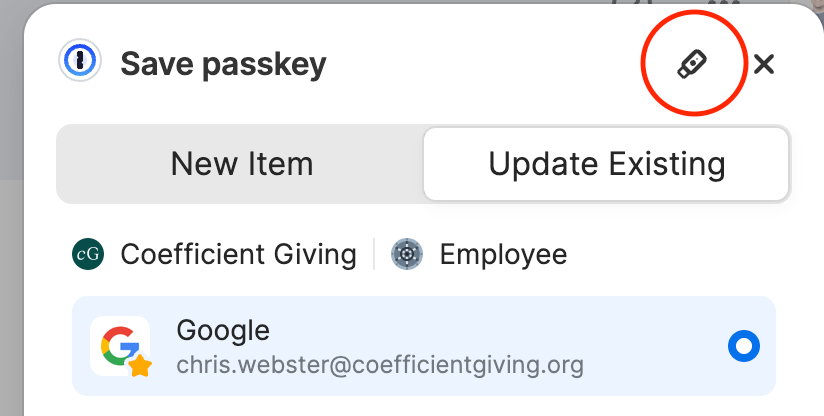
If they just hit ‘save’ on this screen and don’t hit the Yubikey button, the user will think they’ve set up Yubikey protection, but they actually haven’t. The Yubikey is worthless because the site has a software credential instead. When the user next tries to use their Yubikey on that site, it won’t work.
How to handle this:
Explicitly train users to dismiss/cancel the 1Password prompt during Yubikey registration – make sure to include this in your initial email and other documentation!
Create documentation with screenshots showing the exact flow
If you don’t want staff to use passkeys at all, consider disabling 1Password’s passkey autofill during initial Yubikey rollout. This is in your 1Password admin console:

Keeping track of enforcement in 1Password and Google
Google makes this easy. In the Google Admin Console, you can set a clear enforcement date, target specific groups or org units, and roll out in phases. The user panel shows you exactly who has registered security keys and who hasn’t, so you can follow up with stragglers before enforcement kicks in.
1Password makes this tricky. You can only enforce 2FA for everyone at once or not at all, there’s no group selection. Worse, you can’t see who has Yubikeys registered versus who’s using an authenticator app. This creates a problem: if you enforce “security key only” and someone hasn’t set one up, they’re locked out. For this reason, you’ll probably need to allow authenticator apps as a fallback, at least initially. It’s not ideal, but it’s better than locking people out on enforcement day.
Final takeaway: deploying is easier than you might think, and it’s worth it
Our Yubikey rollout was pretty straightforward. We rolled out Yubikeys to all of our 80 staff (at the time) in about 2 months from start to finish. We didn’t have major lockout issues, and we’re able to easily train new staff on how to use them when they’re onboarded. If you’re working on scaling, it’s best to do this as soon as possible, before you have hundreds of staff that you need to get onto Yubikeys.
When you’re rolling the keys out to your team, just be sure to:
Document the 1Password interception button, or disable 1Password passkeys
Roll out in stages, using your ops team as the first large team you work with
Make it clear why you’re doing this, and how important it is for your org not to be compromised
If you’d like to chat about rolling out Yubikeys at your org, please feel free to comment below, or reach out at chris0webster[at]gmail. Best of luck with your passkeys!