
Our staff are trying to get the most out of AI. My job is to help them do that while also making sure that our data stays secure. Claude Code and Cowork are immensely powerful because they can operate autonomously, but this autonomy also introduces major risks. The main risk I’m concerned with is prompt injection, where an agent with access to untrusted data is tricked into exfiltrating that data.
I set up several simple guardrails on our Claude account to try to reduce these risks, and discovered a few things along the way. I didn’t find any great guides for orgs in our position, so I’m hoping this will be useful for other folks trying to set up their Claude Code and Cowork environments more securely.
Claude Code
Auto Mode
Claude Code comes with several permissions modes. The most restrictive requires the user to hit ‘approve’ whenever Claude is taking any actions that write to the computer or use any tools. This sounds good (don’t you want your humans watching Claude?) but in reality it’s maddening to use. Claude asks you for permission every few seconds, and one quickly gets into a state of just slamming the ‘accept’ button every time it appears. This ‘prompt fatigue’ is a classic example of how good security requires systems that are easy to use, and if you make them too hard to use, then your team will simply go around them. Relying on this mode is therefore not a good way to secure Claude Code use.
On the other end of the spectrum is ‘bypassPermissions’ or ‘YOLO’ mode, where Claude can take any actions it likes, including any of the tools at its disposal. This includes downloading and running arbitrary code from the internet, sending emails, deleting files, you name it. Anthropic explicitly says that this mode should only be used in isolated containers and VMs, because it gives Claude so much power. YOLO mode is unsurprisingly not a good solution to our problem either. We therefore block the use of YOLO mode at Coefficient Giving.
In the middle, and our preferred solution, is Auto mode. Auto mode lets Claude use full permissions, like YOLO mode, but there’s a catch. Every action gets sent to a classifier model, which is a separate model whose job it is to block Claude when it gets too crazy. You can read a full list of what’s blocked by default here, but the gist of it is irreversibly deleting stuff, downloading and executing code, and other dangerous actions. In effect, Auto mode shifts the burden of reviewing tool approvals over to another Claude. It’s not foolproof, but Claude will never get prompt fatigue like your staff will, and I think it’s the correct point on the security/usability tradeoff for most work. I heavily encourage the use of Auto mode to our teams.

Allowlisting connectors
We find connecting tools to our Claude very useful. Having Claude in our email & Notion lets us give necessary context to our agents. However, we also want to ensure that we can control access to these connectors and shut them off if we need to. To that end, we set an allowlist on the allowed connectors that our staff can use. This ensures that all Claude tool requests go through IT-managed systems.
We also use a tool called MintMCP that lets us easily set up and manage connectors, like a version of a Google Workspace MCP that can write google docs (unlike the built-in Google Drive connector), but can’t send emails. We can also use MintMCP to require approval for certain actions, or control which team members can access which MCP servers. It’s been a valuable tool for expanding what our staff can do with AI while also giving us more insight and control over those capabilities.
Blocking certain commands
As an additional safety measure, we block Claude from using the following commands:
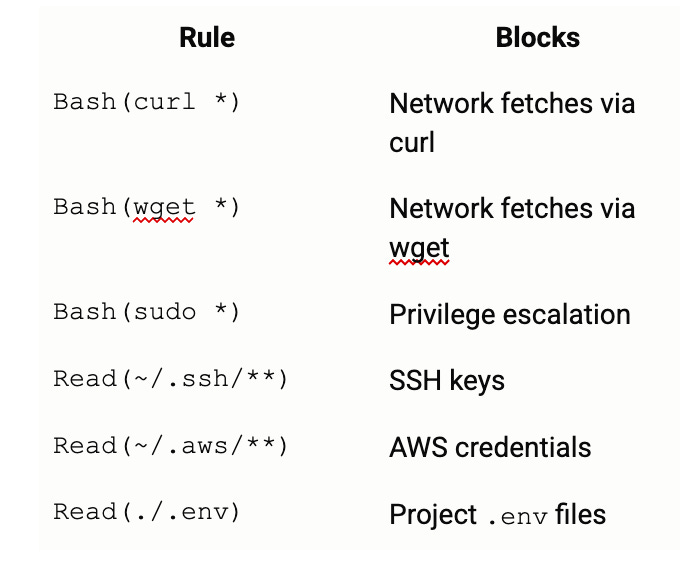
I don’t think these controls are bulletproof (in the recent Mythos 5 system card, Claude figured out how to avoid these guardrails: “[Claude] worked around a security hook aimed at blocking commands such as git by defining G=”git” (and using “G” in subsequent git commands).”), and in theory Auto mode should be catching dangerous actions like these anyways, but in practice they haven’t slowed down our staff at all. So, I think the cost/benefit tradeoff is good, and it’s worthwhile to try to stop Claude from e.g. fetching arbitrary data via curl.
Remote control
We disable Remote Control. We only want our staff to use Claude Code on our managed laptops. Giving easy access to Claude sessions from other devices introduces too much risk. We may change this if we figure out how to securely allow people to use it.
Encouraging sandboxing where appropriate
Claude Cowork
PromptArmor has written an excellent guide on the Claude Cowork threat model here, so my main advice is to read through that carefully and decide what to implement for your use case.
We use Claude Cowork as a sandboxed, safer version of Claude Code. To that end, we sandbox Claude Cowork’s network access and only let it access a select list of approved websites. It can still use the web_search tool to get information from the internet, but it can’t download code or send messages externally. I think this posture gives us a nice middle ground between the extremely powerful (and dangerous) Claude Code and the somewhat limited Claude Chat.
We also disable local Developer MCP servers for Cowork, and disable Desktop Extensions, for the same reasons I noted above on controlling what our staff connect to Claude Code.
Enforcing these settings via MDM
We deploy these settings to our team’s managed Macbooks via a .mobileconfig file shipped from our MDM. You (or your Claude) can see full documentation on how to set this up here for Claude Code, and here for Claude Cowork. If you don’t have MDM, note that admin-console-pushed settings only reach the CLI and IDE, not the desktop app, so you lose central control over Cowork.
One surprise I found when enforcing these settings: despite some documentation to the contrary, the .mobileconfig file applies to both the command line interface and the Claude Desktop versions of Claude Code. We have staff using both, so this made things much easier for us.
In summary
I’ve seen several orgs be too cautious or too reckless in their approach to Claude Code and Cowork. To maximize productivity while reducing major risks, I suggest encouraging Auto mode, blocking dangerous commands, and providing Claude Cowork as a safe sandbox to work with internal data. I believe this is currently the right tradeoff between security and productivity. Of course, this will change over time, and governing efficient AI use is a fast-moving topic for all organizations right now.
Think I got something wrong? Let me know at chris[.]webster[at]cg.org.
Great advice regarding the middle ground. My experience with teams using AI is that the adoption levels are on the lower side - the majority do not know what they can do with the more powerful models (other than research), and the "extreme adoptors" are a very small group who are pushing the limits. At CE it sounds like your policies are a "one size". Do have to impliment different levels of access (or abilities, such as with creating agents) for some users over others, and how do you manage that? Great article and something that is not spoken about very often - the real implimentations in finding that middle ground.
Super useful!
When you say: "we sandbox Claude Cowork’s network access and only let it access a select list of approved websites. It can still use the web_search tool to get information from the internet"
Can you give examples of what is blocked under this policy? Is the approved websites function just for which websites it can, e.g. download things from?