
This post is aimed at security professionals deciding whether to deploy hardware keys, device-bound passkeys, or passkeys in a password manager. In a future post, I’ll go over passkey implementation details and have some notes for folks just trying to secure their own personal accounts.
Stopping phishing
Phishing is the leading cause of data breaches. If you’re relying on SMS codes or authenticator apps (TOTP) to protect your organization, you are vulnerable to phishing attacks. SMS can be bypassed through SIM swapping attacks, and TOTP codes can be phished in real-time using reverse-proxy tools that sit between the user and the legitimate site. The attacker captures your username, password, and your six-digit code in one operation.
What we need is phishing-resistant authentication: credentials that bind to specific domains and can’t be stolen or reused. That means FIDO2, either in the form of hardware security keys (Yubikeys) or passkeys. But which should you deploy?
How FIDO2 Works
FIDO2 is the standard that makes phishing-resistant authentication possible. Instead of sending a password or code to a website, your device creates a unique cryptographic key pair for each site. The private key never leaves your device during authentication, and the public key is stored on the server. When you authenticate, your device proves it has the private key without ever transmitting it. Critically, this happens only after verifying the exact domain, so even if you’re on a perfect phishing site, the authentication simply won’t work because the domain doesn’t match.
Passkeys are FIDO2 credentials that can be either device-bound or synced across devices. In their simplest form, they’re saved directly on your device—in iCloud Keychain on Apple devices, Windows Hello on Windows, or Google Password Manager on Android. When you create a passkey, it’s generated and stored in your device’s secure enclave or TPM (Trusted Platform Module). To authenticate, you unlock it with your device’s biometric or device PIN. The passkey never leaves that specific device. If you want to use it on your laptop, you’ll need to authenticate via QR code from your phone, or create a separate passkey on that device.
But then 1Password (and other password managers) added a feature: synced passkeys. When you save a passkey in 1Password, it’s not bound to a single device. Instead, it’s stored encrypted in your 1Password vault and synced across all your devices via 1Password’s cloud infrastructure. When you authenticate, 1Password retrieves the passkey, you unlock it with your master password or biometric, and it signs the challenge from the website. The convenience is huge: you get the same passkey automatically on your laptop, phone, and tablet.
This is where the threat models start to diverge. A device-bound passkey is quite similar to a Yubikey: you need that specific device to authenticate. A synced passkey in 1Password is more convenient but now depends on your 1Password security posture.
Yubikeys are FIDO2 authenticators that store credentials in hardware. When you register a Yubikey with a site, a unique key pair is generated on the device; the private key never leaves the secure element. To authenticate, you plug in your Yubikey and—if required by the site—enter your PIN. (The older FIDO U2F standard only verified user presence via a touch; FIDO2 adds User Verification, allowing the key to replace a password entirely by using a PIN.) The private key material is physically isolated—software cannot extract it, and physical extraction is virtually impossible without specialized lab equipment. The tradeoff is that you must have the physical key. If you lose it, you need a backup method.
All three are phishing-resistant and use the same underlying protocol. The difference is where the credential lives and what it takes to compromise it.
Threat Model Breakdown
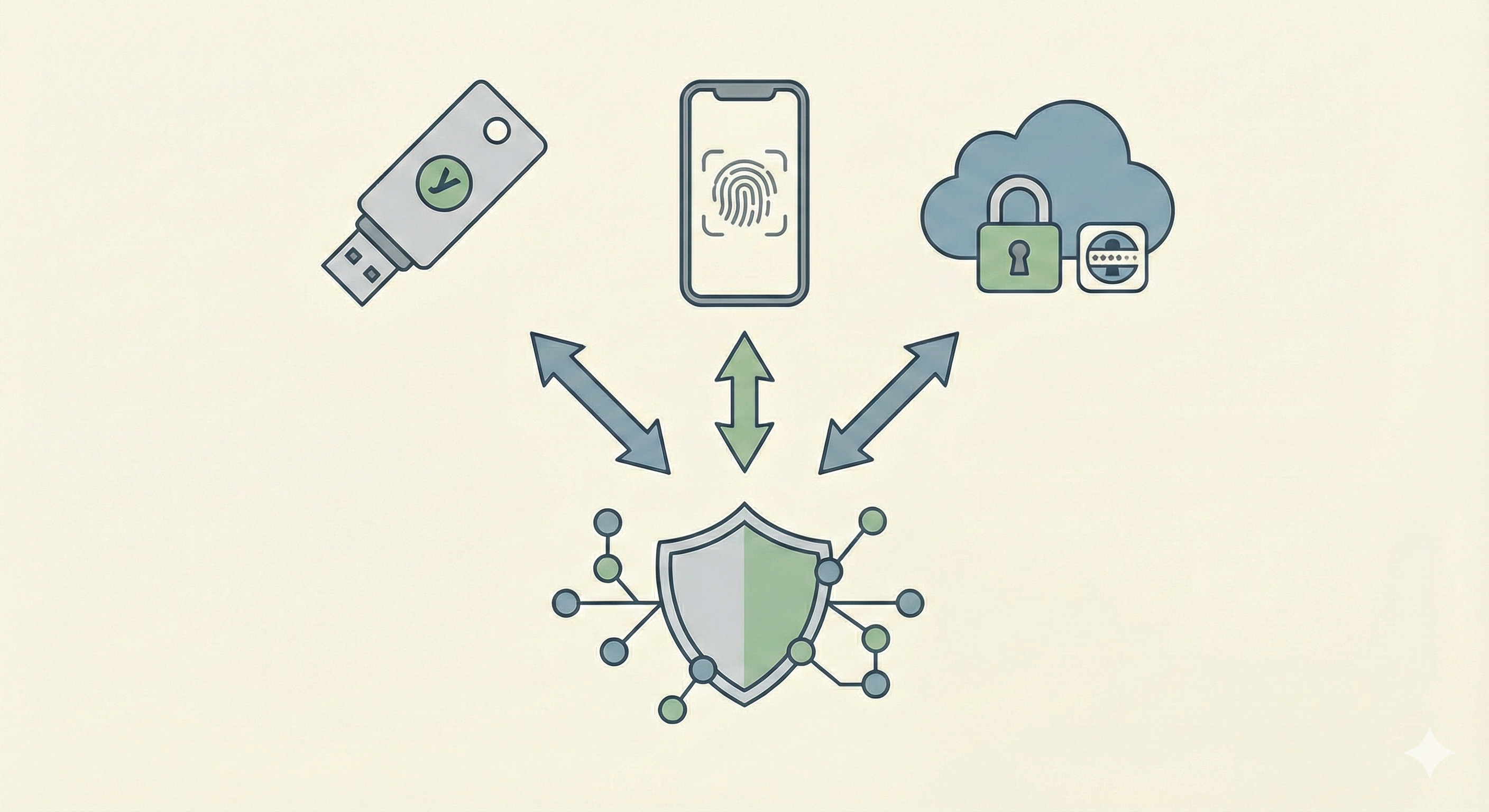
To better understand the tech, let’s go over attack scenarios using each type of passkey. Imagine we have a Google account with a strong password, and we have a 1Password account with a strong master password and its own method of 2FA. Assume that an attacker wants to get access to some sensitive emails or drive files in your account. Here’s what an attacker would need to do to compromise a Google account under each setup.
In all of the following cases, passkeys are being used as a second factor, and not for passwordless authentication. So, in addition to going via one of the bulleted paths below, the attacker will also need to get a hold of your Google password, likely via phishing.
Scenario 1: Passkey stored in 1Password
Remote attacks:
Sophisticated malware on any device where you use 1Password
Compromise your 1Password account via phishing or otherwise stealing your password/secret key
Compromise 1Password’s infrastructure and steal your Vault (very difficult to do because of 1Password’s architecture)
Physical access:
Steal any device where 1Password is installed + unlock that device + access 1Password (which should be locked separately, requiring either biometrics or the master password)
Scenario 2: Device-bound passkey (iCloud Keychain, Windows Hello)
Remote attacks:
Sophisticated malware on that specific device that can access the secure enclave/TPM/keychain (extraordinarily hard; nation-state level)
Physical access:
Steal that specific device + unlock it + authenticate with biometric/device passcode
Scenario 3: Yubikey
Physical attacks only:
Steal your Yubikey + obtain your PIN
Physical theft as an attack vector
An additional threat vector that I didn’t list in the above is simply stealing a device, bypassing the biometrics using a stolen passcode (most people have terrible passcodes on their phones), and opening up your Google Drive with your active Google session. The attacker is then free to download anything or export your emails as they’d like. You or your admin can of course reset your password and lock them out, but this is true of the fancier attack methods above too.
The biggest difference between physical theft, and actually having your credentials, is that if the attacker has the passkey/password and can authenticate, then they can open the Google account settings and lock you out. This isn’t true when simply stealing your phone and using your active session. Google will prompt for re-authentication when you try to change the password or log out of other sessions.
Session hijacking is still a threat
All three authentication methods are equally vulnerable to session hijacking, where malware steals browser cookies after successful login. Passkeys and hardware keys protect the authentication step, not the authenticated session. Mitigations for session hijacking include short session timeouts, re-authentication for sensitive actions, and services that detect anomalous session behavior (like logins from new locations).
Takeaways from threat modeling
The most important takeaway from the above is that using any sort of passkey, stored anywhere, is better than using passwords and one-time codes. Phishing is simply much easier to do than any of the other attack vectors required to get into an account protected by a passkey.
Here are some other lessons learned from this analysis:
Yubikeys eliminate the entire class of remote attacks. They force an attacker to physically steal something from you.
However, the remote attacks required to breach an account protected by digital passkeys are very sophisticated, and quite possibly outside of your threat model.
If your passkey is in 1Password, then you may as well not have a Google password at all and use passwordless authentication (because if the attacker gets your 1Password account, you’re hacked either way.)
If your device is stolen, and the attacker knows your device passphrase, they can probably access your Google account anyway (because you’re logged into that device, and you have an active session). This scenario isn’t quite as bad as someone fully logging in with your credentials, because they won’t be able to lock you out. But if they wanted to just get a specific file from your Google Drive, they’d be able to do so.
So, in the physical device access scenarios, it doesn’t really matter where your passkey is saved. Stealing and unlocking a device leads to compromise either way.
However you store your passkeys for your main accounts, it’s critical that your 1Password account itself is protected with a Yubikey (plus a backup key), so it can’t be phished.
1Password is working on using device-bound passkeys for authenticating into 1Password itself, but it’s still in beta.
Part 2: Implementation
This post covered the technical differences and threat models for different passkey implementations. In my next post on the topic, I’ll cover specific implementation steps that come up when rolling out passkeys to your organization (or just for personal use.)